Jan 27, 2007

C++ Program to generate natural numbers from 1 to 100 using for loop

This program is useful for C++ beginners. Sometimes they find logic to build different series. Here is how to make a C++ program to generate natural numbers from 1 to 100 using for loop.

#include<iostream.h>
#include<conio.h>
main()
{
clrscr();
int i;
for (i=1;i<=100;i++)
{
cout<<i<<endl;
}
getch();
}
READ MORE - C++ Program to generate natural numbers from 1 to 100 using for loop

Jan 24, 2007

Clearing Document List in Windows XP

In Windows XP 'My Recent Document" in Start menu shows all those documents on which you have worked recently. So anyone can keep track of your recent documents. If you wish to clear this list so that nobody can keep track about it. You can do it by following steps.

1. Click 'Start Menu' then Right click empty area of 'Start menu' a small popup menu appears on the screen click 'Properties' option in menu items. 'Taskbar and Start Menu Properties' Menu appears on your screen -
then click 'Customise' button then 'Customize Start Menu' Screen apeeared

2. Click 'Clear List' option and set the Number of Programs on Start Menu to zero.

Thus no one can access your recently used programs by Start menu list.
READ MORE - Clearing Document List in Windows XP

Jan 20, 2007

Create Screensaver In Windows-XP of your Photographs : (Tutorial)

You can create a Screensaver of your photograph in Windows-XP very easily and quickly. Screensaver would be like slide show presentation with transition effects. Follow the step by step process and achieve the task.

1. Right Click on the empty area on the Desktop and choose 'Properties' then click 'Screen Saver' Tab.

2. In the Screensaver list, click on 'My Pictures Slideshow', and click 'Settings' to make any adjustments-such as how often the pictures should change, their size, and whether you would like to use transition effects between pictures.

3. Click OK to finish. The screensaver that will now be generated will display photographs from the My Pictures folder in a random manner.
READ MORE - Create Screensaver In Windows-XP of your Photographs : (Tutorial)

Jan 6, 2007

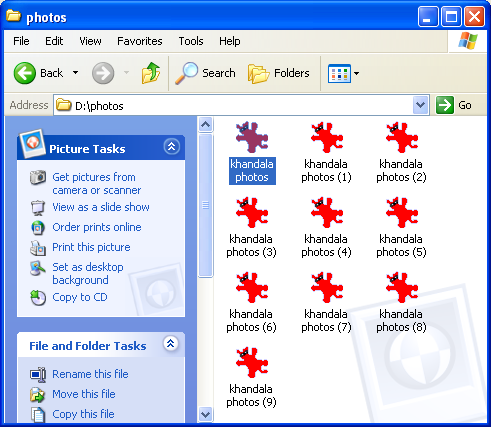
How to rename multiple files in Windows XP (Tutorial)

You can rename multiple files in Windows XP at one go easily. Follow this step by step tutorial and learn how to do the same. Here are the steps :

1. Open the folder in which do you want to rename files.
2. Select All those files which is to be renamed.
3. Then Click Right Mouse Button on one of the select file.
4. Select 'Rename' option from the popup menu.
5. (Type the name) rename which you want and then click on white space next to the file icon. All the files will be renamed in a flash.
Just suppose you name a file XYZ then all the files will be renamed as XYZ, XYZ(1), XYZ(2) and so on.
Watch step by step video tutorial for the same here http://unicomtech.blogspot.com/2011/08/how-to-rename-multiplebulk-file-at-one.html

READ MORE - How to rename multiple files in Windows XP (Tutorial)

Infolinks In Text Ads

Total Pageviews

Powered by Blogger.

Dont Forget To Follow Us